



Superhuman integration
The PostHog connector brings your PostHog data into Superhuman. In Superhuman Go, ask about your product in plain English and get answers with links to the source. In Superhuman Docs, paste PostHog links to get live cards, sync PostHog data into tables, and pull numbers into your docs with SQL.
The optional PostHog Customer Context agent adds proactive help. It shows how a customer uses your product while you reply to them, explains PostHog alert emails, and sends a weekly product pulse.
Install the PostHog connector
- Open the PostHog connector in the Superhuman Store.
- Click Try connector.
- Sign in to PostHog and approve access.
The connector works with PostHog Cloud US and EU. PostHog sends you to the right region based on the account you sign in with. If you're signed in to both regions, PostHog asks which one to use.
Ask about your product in Superhuman Go
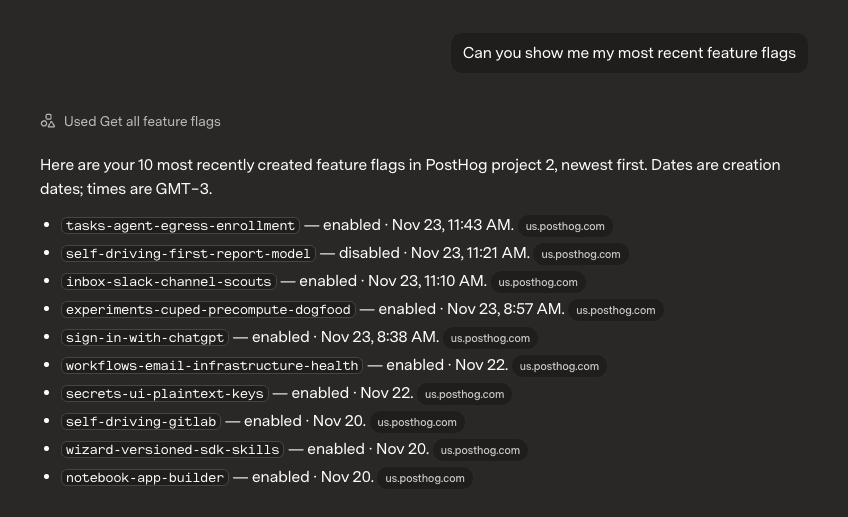
After you connect, Superhuman Go uses the PostHog MCP server to answer questions about your PostHog data. Try prompts like:
- "How many signups did we get in the last 7 days compared to the week before?"
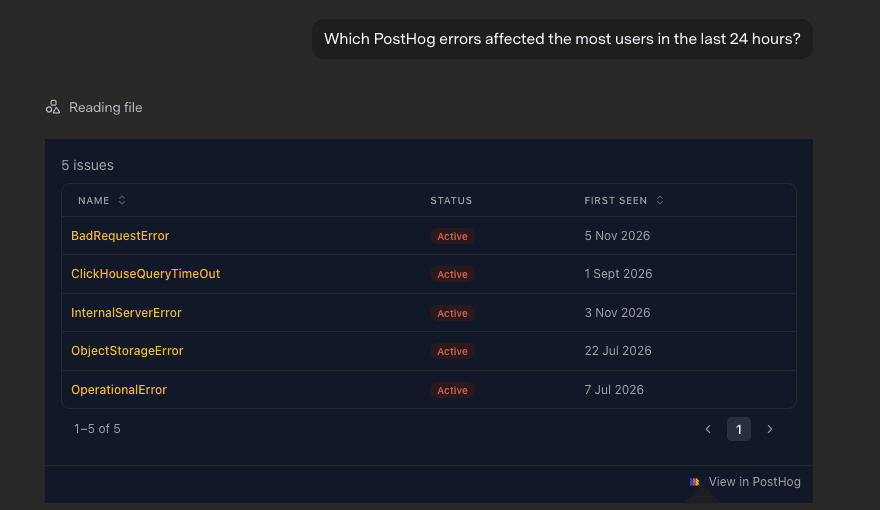
- "Which errors affected the most users in the last 24 hours?"
- "Look up jane@example.com in PostHog. What has she done in the last month?"
- "Is the
new-onboardingfeature flag enabled, and for how many users?" - "Summarize the latest responses to our NPS survey."
- "Find our onboarding dashboard."
Superhuman Go can query trends, funnels, retention, paths, and SQL. It can also read your dashboards and insights, look up people and their session recordings, and check feature flags, experiments, surveys, error tracking issues, and web analytics.
The connector is read-only, with three exceptions: creating an annotation, switching the active project, and switching the active organization. Superhuman Go asks you to confirm before it runs any of them.
Get customer context while you write
The PostHog Customer Context agent runs on top of the connector. To install it, open the agent in the Superhuman agent directory and click Install. If you haven't installed the PostHog connector yet, Superhuman asks you to install it too.
The agent has three routines:
| Routine | When it runs | What it does |
|---|---|---|
| Customer context | While you write or reply to a customer, user, or prospect | Looks up the recipient in PostHog and shows their recent activity, errors they hit, and links to their latest recordings. It doesn't change your draft, and it stays quiet if the person isn't in PostHog. |
| Alert explainer | When a "PostHog alert … is firing" email arrives | Reruns the insight behind the alert and explains what changed, since when, and the most likely cause. |
| Monday product pulse | Every Monday at 9am Eastern | Sends a short readout of the past week: active users, signups, experiments that reached significance, and the error that affected the most users. |
To change a routine's schedule or time zone, or to turn a routine off, open the agent's settings in Superhuman Go.
Use PostHog in Superhuman Docs
The connector also adds cards, tables, and formulas to Superhuman Docs. To add it to a doc, open the plugins panel and search for PostHog, or add it from the Superhuman Docs gallery. Sign in when prompted.
Most blocks need a project ID. This is the number after /project/ in your PostHog URLs. For example, the project ID in https://us.posthog.com/project/2/insights is 2.
Show a PostHog link as a card
Paste a PostHog link into a doc, and Superhuman Docs offers to show it as a PostHog card. You can also choose Display as > PostHog on a link that's already in the doc.
| Link to | The card shows |
|---|---|
| Insight | The latest value, the change from the previous interval, the date range, and a sparkline |
| Dashboard | How many insights it has, and who created it |
| Feature flag | Whether it's enabled, its rollout, and its variants |
| Experiment | Its status, how long it has run, its feature flag, and its variants |
| Session recording | Who it is, which page they started on, how long it lasted, and console errors |
| Person | When they were last seen, when they were first seen, and their plan, company, and location |
| Survey | Its status, how many responses it has, and its response rate |
| Cohort | How many people are in it, and whether it's static or dynamic |
| Error tracking issue | The exception, its status, and when it was first seen |
| Notebook | Its title, who last edited it, and how it starts |
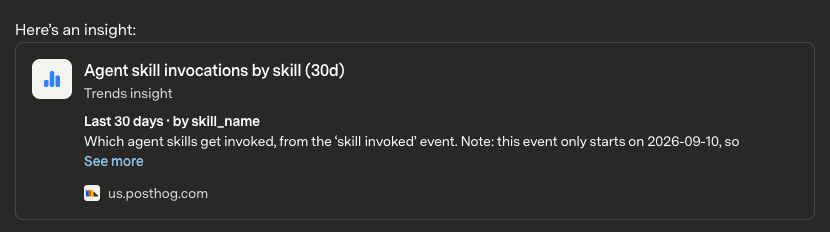
Each card type is also a column type. Set a table column to a PostHog column type, and links pasted into that column show as cards.
Look up items by ID, key, or email
Every card is also a formula. Pass a link, or an ID or key together with the project ID. In Superhuman Docs, the first argument of every formula is your PostHog account. Start typing the formula, and pick your account from the suggestions.
A column type can't pass a project ID, so a Person column only works with PostHog person links. To look up a column of emails, add a formula column instead, such as Person(PostHog, thisRow.Email, 2).
Sync PostHog data into a table
Add a PostHog sync table from the plugins panel and set the project ID in the table's settings. The available tables are FeatureFlags, Experiments, Dashboards, Insights, Surveys, and Cohorts.
Superhuman Go also searches the synced dashboards, insights, experiments, surveys, and cohorts, so prompts like "find the onboarding funnel" can find them.
Pull a number with SQL
The SQL formula runs a SQL query against your PostHog data and returns a single number:
The first column of the first row must be a number.
Take actions from a doc
Two formulas change data in PostHog. Use them in buttons and automations:
CreateAnnotation(PostHog, 2, "Launched the new pricing page")adds an annotation to your PostHog charts.SetFeatureFlagEnabled(PostHog, "new-onboarding", false, 2)turns a feature flag on or off.
SetFeatureFlagEnabled changes what your users see as soon as it runs. Restrict who can press the button in your doc.
Permissions and data access
The connector signs in with OAuth and asks for read access to the data it shows. It also asks for write access to annotations and feature flags, for the two actions above. It can only access projects your PostHog account can access.
To disconnect Superhuman, revoke it under Connected applications in your account settings. You can also remove the connection in Superhuman.
Troubleshooting
- "User must reauthenticate due to incompatible changes in Pack auth settings": Remove the PostHog connection in Superhuman, then sign in again.
- "This link is from PostHog EU Cloud, but your connected account is on the other region": The link and your connected account are in different PostHog Cloud regions (US and EU). Connect an account from the link's region.
- "Wrong argument type" in a formula: The first argument must be your PostHog account. Pick it from the suggestions, then add the other arguments.
- "To look up a … by ID or key, add the project ID": Add the project ID as the last argument, or paste the item's PostHog link instead.
Questions or feedback? Contact support.